

Chưa có sản phẩm trong giỏ hàng.
Tin tức
Hướng dẫn cách photo hộ chiếu tại Toshiba Thiên Băng

06
Th10
Th10
In the digital age, photocopying a passport is a mandatory step in most administrative procedures, for studying abroad, applying for jobs, or immigration. However, many people still confuse taking a photo with the correct way to photocopy a passport . An unclear copy, missing information, or misaligned frame can lead to the rejection of your application, wasting time. Understanding this, Toshiba Thien Bang provides detailed instructions to help you photocopy your passport accurately, quickly, and with guaranteed quality https://africaneye.soscodesoftware.com/
Nội dung bài viết
- 1 Detailed instructions on how to photocopy a passport.
- 1.1 Prepare the equipment and materials before photocopying.
- 1.2 Identify the pages that need to be photocopied according to regulations.
- 1.3 How to place your passport on a photocopier.
- 1.4 Select the appropriate copying mode.
- 1.5 Check the quality after photocopying.
- 1.6 Save and name the file when scanning your passport.
- 1.7 Notarize copies if required.
- 1.8 Tips to make your passport photocopy look better and more accurate.
- 2 Important notes when photocopying passports
- 2.1 Only photocopy the necessary pages.
- 2.2 Ensure the clarity of the copy.
- 2.3 Maintain the correct layout and size.
- 2.4 Choose the appropriate star mode.
- 2.5 Do not edit or delete any information.
- 2.6 Protecting personal information
- 2.7 Notarize copies when requested.
- 2.8 Check carefully before submitting your application.
Detailed instructions on how to photocopy a passport.
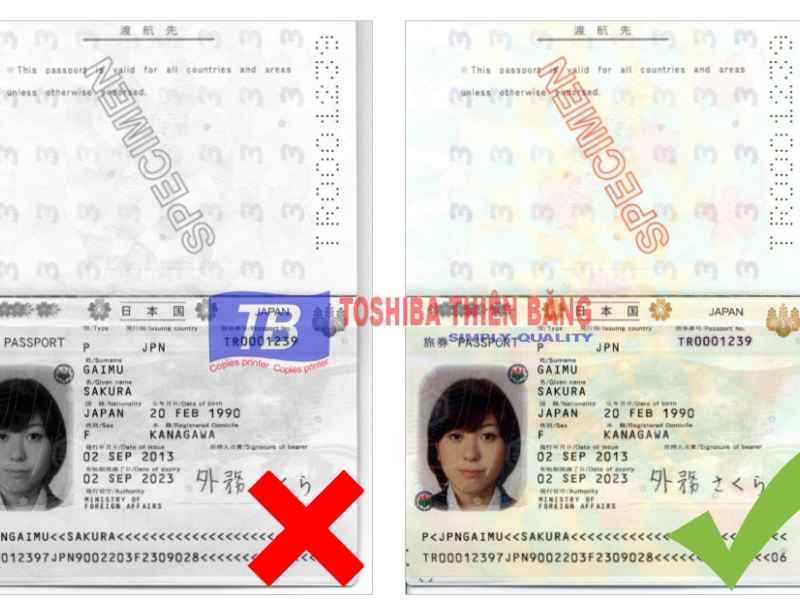
Prepare the equipment and materials before photocopying.
Before you begin photocopying your passport , you need to prepare a photocopier or scanner with a minimum resolution of 300 dpi and A4 paper. The original passport must be intact, not torn, wrinkled, or missing pages. If you are using a Toshiba e-Studio machine, choose the “Text + Photo” mode to maintain sharp details. Thorough preparation will help ensure high-quality copies the first time https://capacitaciones.eliascapellan.edu.pe/
Identify the pages that need to be photocopied according to regulations.
When photocopying your passport, you should only copy the pages containing your photo, personal information, passport number, issue date, and place of issue. If required, also photocopy pages containing visas or entry/exit stamps to prove your travel history. Do not photocopy the entire passport as this may reveal unnecessary information. Selecting the correct pages saves time and ensures the accuracy of your application.
How to place your passport on a photocopier.
When photocopying your passport, open the passport and place the page you want to copy face down on the glass surface of the photocopier. Align it closely to the inner corner to ensure the image is not tilted or the text is not cut off. If the passport is smaller than A4 size, place a sheet of white paper over it to reduce reflections. Proper placement will result in a well-balanced, easy-to-read, and clear copy.
Select the appropriate copying mode.
The copying mode is crucial when photocopying a passport. For documents requiring a color copy, select “Color Copy” to preserve the original color of the passport. If only a black and white copy is needed, you should still adjust the brightness to avoid dark or blurry text. Modern Toshiba machines also have a “2-in-1 Copy” mode that allows you to combine both sides onto a single A4 sheet, saving paper and keeping things tidy.
Check the quality after photocopying.
After photocopying your passport, you need to carefully check the copy. Make sure all the information – from your full name, photo, passport number to the issue date – is clear and not missing any corners. If you notice any blurriness, tilting, or ink smudging, you should make a new copy immediately to avoid any problems when submitting your application. A standard copy always helps speed up the application process.
Save and name the file when scanning your passport.
If you scan your passport instead of photocopying it, save the file in PDF or JPEG format, with a size not exceeding 2 MB. Name the file clearly, for example, “FullName_PassportPage.pdf,” to make it easy to find and avoid confusion. When sending via email or online portal, ensure the file is free of errors or blurry images. Toshiba Thien Bang recommends always keeping a safe backup copy on your personal device.
Notarize copies if required.
In many cases, photocopying a passport also includes the step of notarizing the copy. You bring the original and the copy to an authorized agency such as the ward People’s Committee or a notary office. The officer will compare, verify, and stamp the copy, giving it the same legal validity as the original. This is an important step when applying for study abroad, visas, or international administrative procedures.
Tips to make your passport photocopy look better and more accurate.
When photocopying your passport, you can place a white sheet of paper behind it to reduce glare. Keep the photocopier’s glass clean to avoid transferring dirt or dust onto the copy. Do not fold the edges or press too hard when placing the passport to avoid damaging the spine. With just a few simple steps, you’ll have a highly professional-looking copy.
Important notes when photocopying passports
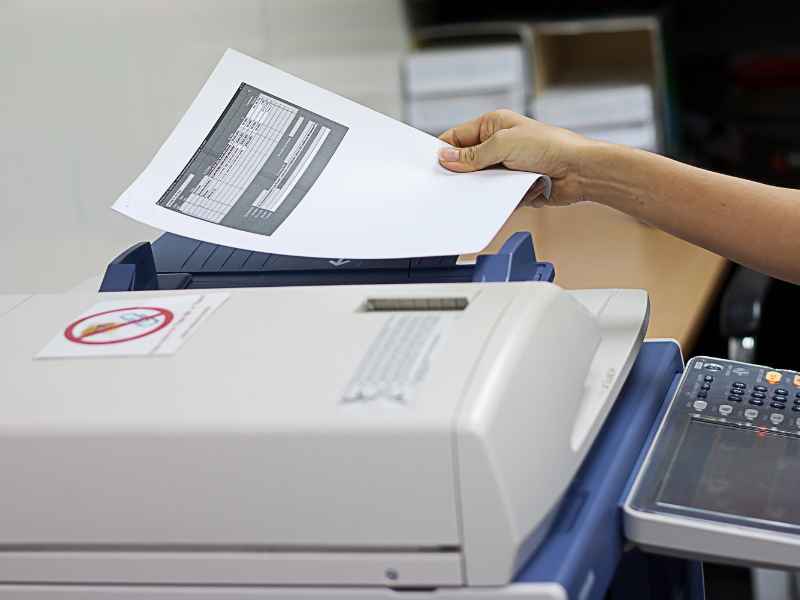
Only photocopy the necessary pages.
When photocopying your passport, avoid copying the entire document as this could reveal unnecessary personal information. Typically, you only need to photocopy the page containing your photo, personal information, issue date, and passport number. If requested by the authorities, you can also photocopy pages containing visas or entry/exit stamps. Selecting which pages to photocopy helps keep your documents concise, saves paper, and focuses on the essentials.
Ensure the clarity of the copy.
Image quality is crucial when photocopying passports. The copy needs to clearly display the text, numbers, and image without smudging or blurring. When photocopying, ensure the machine’s glass surface is clean and select a moderate brightness level to avoid glare. A clear copy will facilitate a faster and more accurate verification process.
Maintain the correct layout and size.
When photocopying passports, many people often make the mistake of misaligning the document, resulting in information being cut off. You should place the passport page flush against the left corner of the glass and keep the edges straight to avoid distortion. If the passport is smaller than A4 size, place a sheet of white paper over it to reduce glare. Maintaining the correct layout will make the copy more balanced and easier to read.
Choose the appropriate star mode.
Depending on the requirements of your application, you can choose color or black and white copies. For international applications or visa applications, color photos are recommended to ensure clear information and identification. For domestic administrative documents, black and white copies are sufficient if the contrast is good. Toshiba Thien Bang recommends using the “Text + Photo” mode for the highest resolution.
Do not edit or delete any information.
One principle when photocopying a passport is to maintain the original’s integrity. You must absolutely not edit, cut, or erase any information. Doing so could invalidate the copy or raise suspicions of fraud. Ensure the photocopy accurately reflects the contents of the original passport.
Protecting personal information
Passports contain sensitive data such as full name, date of birth , nationality, and passport number. When scanning or photocopying your passport, only print the necessary copies and avoid sharing them on contacto eskaparate social media. If you need to send electronic files, set a password or use a highly secure platform. Toshiba Thien Bang always encourages customers to protect their personal information in all transactions.
Notarize copies when requested.
Some procedures, especially those related to studying or working abroad, require notarization of your passport. In such cases, you must bring both the original and a copy to a notary office or the local People’s Committee (ward/commune). The officer will compare, verify, and stamp the copy. This notarized copy has the same legal validity as the original passport in official documents.
Check carefully before submitting your application.
After photocopying your passport, compare the copy to the original to ensure no information is missing. Check that the text, numbers, and photo are not tilted, blurry, or dark. Even a small error can cause your application to be rejected, delaying the process. Careful checking will help you avoid mistakes and save time effectively.
Properly photocopying your passport not only helps your application get approved quickly but also demonstrates professionalism in every detail. A clear, complete, and properly formatted copy is always the first step to a smooth paperwork process. Pay attention to every small step, from selecting the copying mode and aligning the pages to checking the final quality, as these are the factors that create a perfect copy. Toshiba Thien Bang wishes you success in photocopying your passport!
