

Chưa có sản phẩm trong giỏ hàng.
Tin tức
In 2 mặt bị ngược: Nguyên nhân và cách in đúng chiều cho mọi loại máy in
29
Th12
Th12
You can print a few test pages and it’s fine, but when you print more, the double-sided pages print upside down , look upside down, the binding is wrong, and you waste paper very quickly. The following article, ” Double-sided printing upside down: Causes and how to print correctly for all types of printers, ” by Toshiba Thien Bang will help you resolve the issue in three steps: understand the error, choose the correct flip edge, and print correctly on common printers.
Nội dung bài viết
- 1 Understanding the correct way to fix double-sided printing errors will help you fix them much faster.
- 2 What does it mean if the two sides are printed upside down? Is it the top or the back of the print?
- 3 The most common reason for double-sided printing being messed up is usually due to settings.
- 4 Long Edge và Short Edge là gì ?
- 5 Cách xử lý nhanh theo “đúng bệnh”
- 6 Hướng dẫn cách in 2 mặt giấy không bị lật ngược
- 7 Tips for proofreading before printing in bulk, saving you paper and time.
- 8 In conclusion
Understanding the correct way to fix double-sided printing errors will help you fix them much faster.
In the office, double-sided printing errors are usually not due to a faulty printer. The problem often stems from incorrect selections in the print dialog box, or from how you flip the paper when printing manually. Without understanding the underlying issue, you’ll try each option, wasting time and easily causing further confusion japan-name/
The most common problem is that the second page is flipped upside down, or “turned upside down” when you flip it like a book. Sometimes you see the front side is correct, but the back side is rotated 180 degrees, making it very difficult to read. If you are experiencing this problem with double-sided printing , start by identifying the “type of flipping” before deciding whether to choose Long Edge or Short Edge printing destination/
You also need to pay attention to the paper size and orientation. Just a small change between portrait and landscape printing can make a huge difference in the results. Additionally, Word, Excel, and PDF documents sometimes have their own page rotation settings, so the printing process will also differ.
What does it mean if the two sides are printed upside down? Is it the top or the back of the print?
Before making any adjustments, you should distinguish between the two common “reverse” types. This distinction will help you select the correct option in one go.
Flip-over means the back page is turned 180 degrees relative to the front. When you hold the paper to read, you have to flip it over to see the next page. This often happens when you choose the wrong flipping edge, or when manually flipping the paper in the wrong direction.
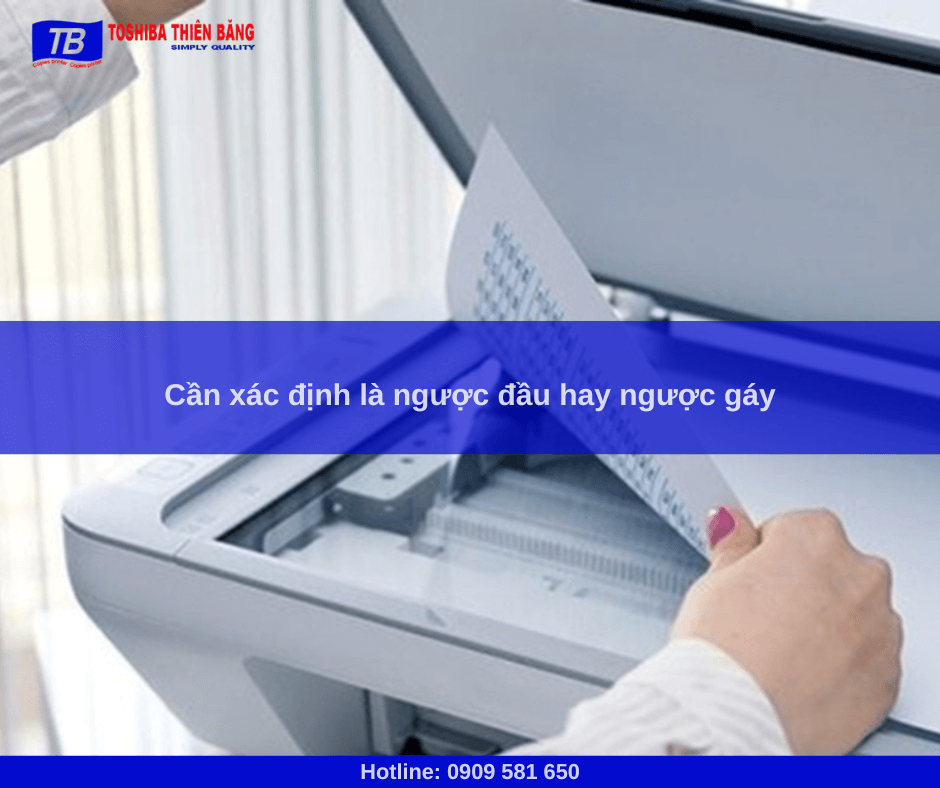
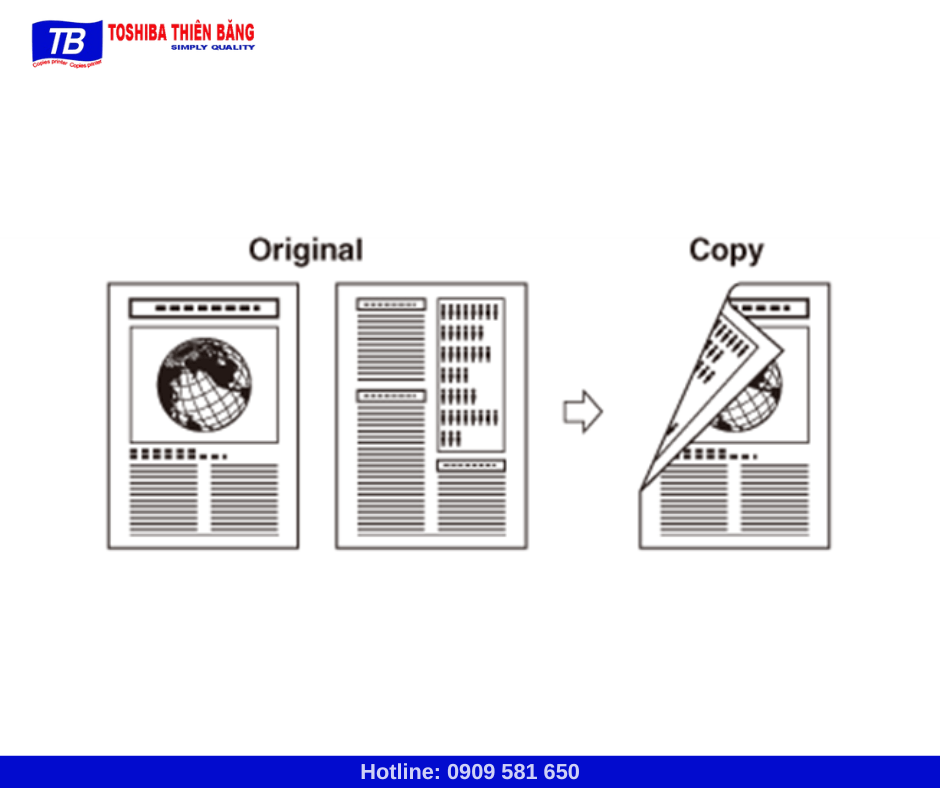
Reverse binding means that when you flip through pages like you would a book, the next page flips like a calendar page. You’ll see the content is oriented correctly, but the “spine” is on the wrong side. This often happens when you print documents in landscape mode, or print slides and accidentally select the wrong side
Once you identify the type of inversion, you can quickly pinpoint the cause. If you’re experiencing inverted double-sided printing , don’t immediately blame the printer. Check your edge selection first, as this is the most common reason.
The most common reason for double-sided printing being messed up is usually due to settings.
There are four common groups of problems users encounter. Each group requires a different solution, so reading them in order will make it easier.
The first group is those who incorrectly selected “Flip on Long Edge” and “Flip on Short Edge.” These two options determine how pages turn, much like how you flip through a book or calendar. Choosing the wrong option once will result in the next page turning incorrectly.
The second issue is incorrect page orientation, specifically between Portrait and Landscape. Some users are printing horizontally but the printer interprets it as portrait. In this case, even with the correct edge orientation, the result can still be inaccurate.
The third group involves printers without automatic duplexing. You have to print one side first, then flip the paper to print the other side. If you flip it the wrong way or to the wrong side, the next page will be flipped.
Nhóm thứ tư là driver hoặc phần mềm điều khiển. Có trường hợp máy in đổi giao diện, hoặc driver cũ, khiến tên tùy chọn khác. Khi gặp in 2 mặt bị ngược, bạn nên kiểm tra xem trình điều khiển có đang dùng đúng model máy hay không. ovo88
Long Edge và Short Edge là gì ?
Phần này là “nút thắt” của rất nhiều lỗi. Chỉ cần bạn nắm rõ, bạn sẽ không còn phải thử đi thử lại.
Long Edge nghĩa là lật theo cạnh dài của tờ giấy. Với khổ A4 in dọc, cạnh dài nằm bên trái và bên phải. Khi bạn chọn Long Edge, bạn sẽ lật giống như lật sách, gáy nằm bên trái.
Short Edge nghĩa là lật theo cạnh ngắn của tờ giấy. Với A4 in dọc, cạnh ngắn nằm phía trên và phía dưới. Khi bạn chọn Short Edge, bạn sẽ lật giống như lật lịch treo tường, gáy nằm phía trên.
Một mẹo nhớ nhanh là: tài liệu đọc kiểu sách, thường đi với Long Edge. Tài liệu lật kiểu lịch, thường đi với Short Edge. Tuy nhiên, bạn vẫn phải nhìn hướng trang. Nhiều lỗi in 2 mặt bị ngược xuất hiện vì người dùng nhớ mẹo, nhưng quên kiểm tra đang in ngang hay in dọc.
Cách xử lý nhanh theo “đúng bệnh”
Một cách làm ổn là bạn xử lý theo chuỗi. Bạn kiểm tra hướng trang trước, rồi kiểm tra duplex, rồi mới kiểm tra cạnh lật. Trình tự này giảm sai số, vì mỗi bước chỉ có vài lựa chọn.
Đầu tiên, bạn mở hộp thoại Print, sau đó nhìn Orientation. Nếu tài liệu là văn bản bình thường, thường là Portrait. Nếu tài liệu là slide hoặc bảng rộng, thường là Landscape.
Tiếp theo, bạn nhìn lựa chọn in hai mặt. Nó có thể là Print on both sides, Duplex, hoặc 2-sided printing. Nếu máy có duplex tự động, bạn chỉ cần chọn đúng tùy chọn.
Cuối cùng, bạn chọn cạnh lật. Nhiều máy hiện Flip on Long Edge và Flip on Short Edge. Một số máy hiện Long Edge Binding và Short Edge Binding. Dù tên khác, ý nghĩa vẫn như nhau. Khi bạn gặp in 2 mặt bị ngược, bạn chỉ cần đổi cạnh lật, rồi in thử lại 2 trang.
Hướng dẫn cách in 2 mặt giấy không bị lật ngược
Ở mục này, Toshiba Thiên Băng xin hướng dẫn bạn các cách giúp im 2 mặt giấy không bị ngược với từng thương hiệu khác nhau:
Hướng dẫn sửa lỗi in 2 mặt bị ngược với máy HP
Bước 1: Mở tài liệu cần in, có thể là Word, Excel hoặc PDF. Sau đó, nhấn vào biểu tượng máy in trên thanh công cụ, hoặc sử dụng tổ hợp phím Ctrl + P để mở cửa sổ thiết lập in.
Bước 2: Trong cửa sổ in, chọn Printer Properties để truy cập phần cài đặt chi tiết của máy in. Tiếp theo, chuyển sang thẻ Printing Shortcuts, rồi tìm mục Print on both sides. Tại đây, bạn chọn Yes, flip over để thiết lập in hai mặt theo cùng một chiều. Sau khi hoàn tất, nhấn OK và tiến hành in, bản in sẽ không còn bị đảo chiều.
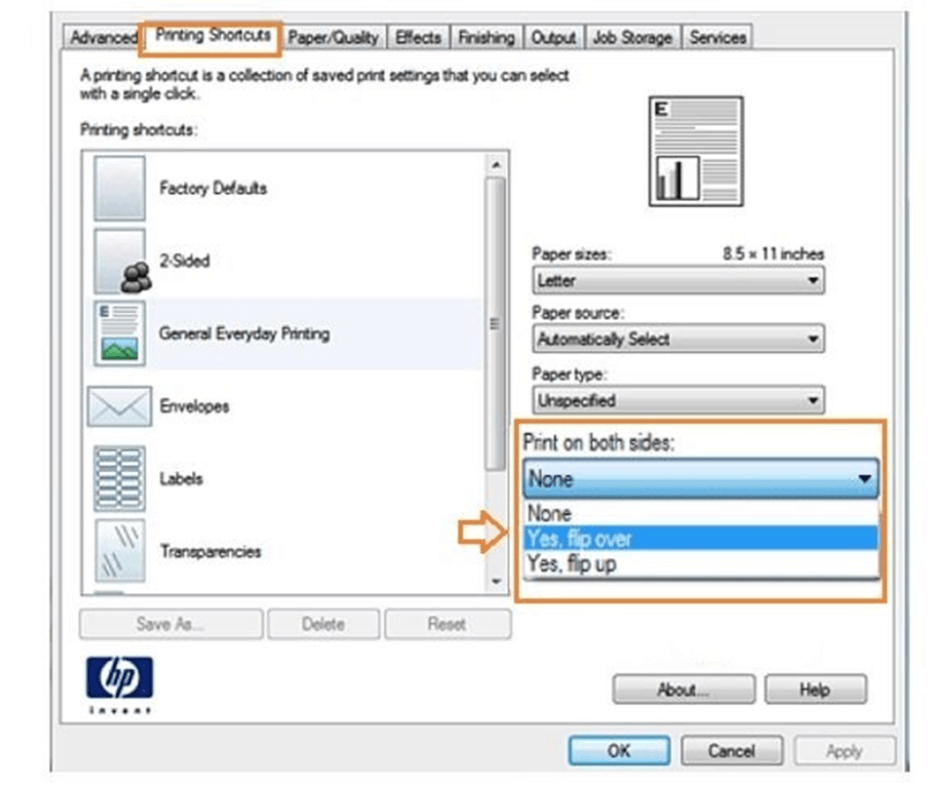
Lưu ý: Ở một số dòng máy HP, tùy chọn in hai mặt có thể hiển thị dưới dạng Flip on Long Edge hoặc Flip on Short Edge. Nếu không thấy mục “Yes, flip over”, bạn hãy kiểm tra các lựa chọn này. Đây là thiết lập tương ứng với hướng in dọc hoặc in ngang của tài liệu.
Do mỗi model máy in HP có giao diện trình điều khiển khác nhau, vị trí các tùy chọn có thể thay đổi. Tuy nhiên, nguyên tắc cài đặt in hai mặt vẫn giống nhau. Bạn chỉ cần xác định đúng mục in hai mặt trong phần thuộc tính máy in, từ đó thao tác nhanh hơn và đảm bảo bản in đúng chiều theo nhu cầu công việc.
Cách in 2 mặt không bị ngược trên máy in Canon
Máy in Canon là dòng thiết bị văn phòng được sử dụng rộng rãi tại Việt Nam nhờ khả năng in ổn định, tốc độ tốt và độ bền cao. Các mẫu máy Canon có giao diện cài đặt khá trực quan, giúp người dùng dễ làm quen ngay cả khi không thao tác thường xuyên.
Mặc dù tính năng in hai mặt đã được tích hợp trên nhiều dòng máy Canon, nhưng nếu ít sử dụng, bạn vẫn có thể bối rối khi thiết lập. Với hướng dẫn dưới đây, bạn có thể in hai mặt đúng chiều một cách đơn giản. Ví dụ minh họa được thực hiện trên máy Canon 3300. Lưu ý, tài liệu cần in phải có từ hai trang trở lên.
Bước 1: Mở tài liệu cần in, sau đó nhấn tổ hợp phím Ctrl + P để mở cửa sổ in.
Bước 2: Trong giao diện in, kích hoạt tùy chọn Print on both sides để bật chế độ in hai mặt. Tiếp theo, nhấn vào Printer Properties để thiết lập chi tiết.
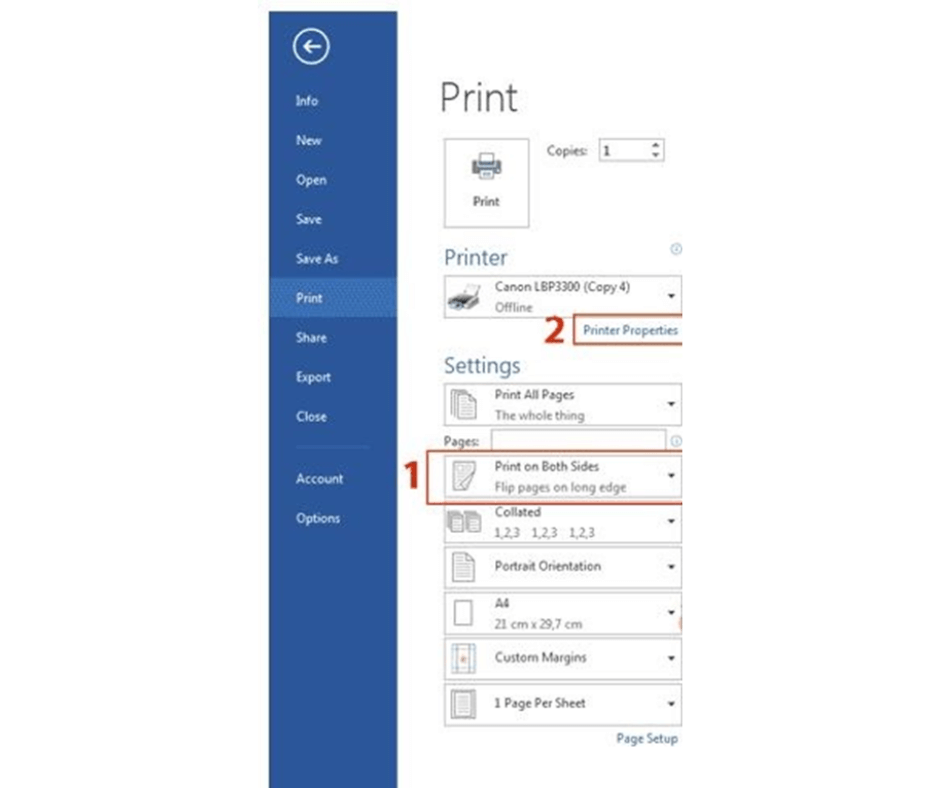
Bước 3: Trong cửa sổ Printer Properties, chuyển sang thẻ Finishing, nơi chứa các tùy chọn liên quan đến cách in và lật trang.
Bước 4: Kiểm tra và chọn 2-sided printing nếu mục này chưa được bật.
Bước 5: Thiết lập cạnh lật trang phù hợp. Nếu in tài liệu theo chiều ngang, bạn chọn Short Edge (Top). Trường hợp in theo chiều dọc, giữ mặc định Long Edge (Left) để các trang không bị đảo chiều.
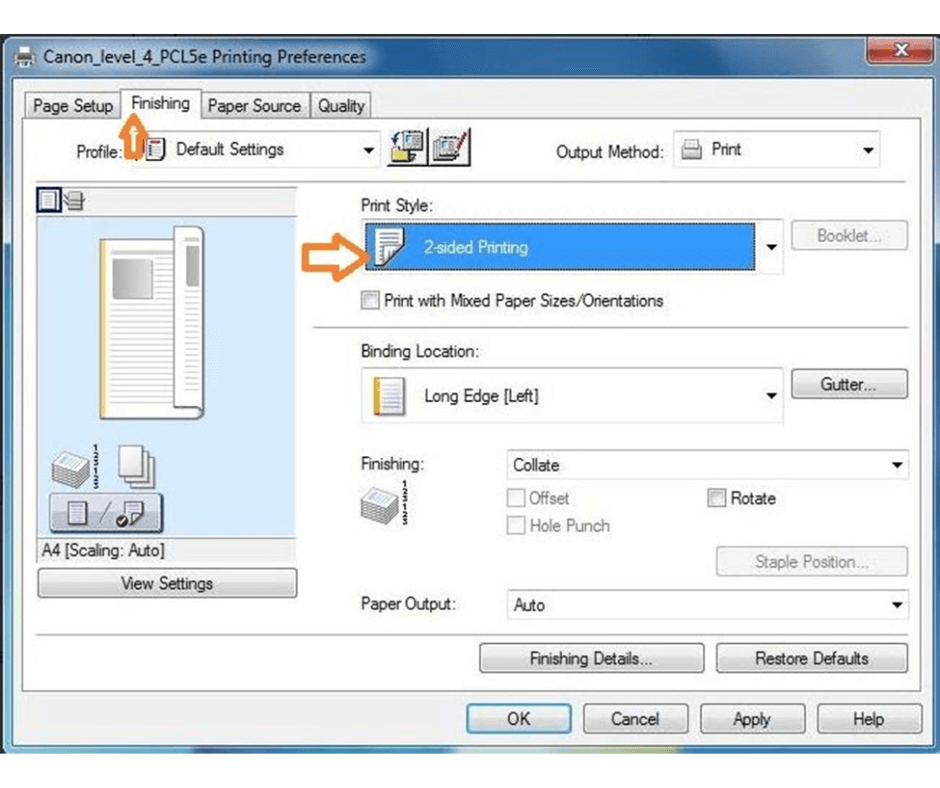
Sau khi hoàn tất các bước trên, bạn có thể tiến hành in. Bản in hai mặt trên máy Canon sẽ hiển thị đúng hướng, dễ đọc và thuận tiện cho việc sử dụng hoặc đóng tập.
Cách in 2 mặt không bị ngược trên máy in Brother
Máy in Brother là một trong những dòng thiết bị văn phòng được sử dụng phổ biến tại Việt Nam, phù hợp cho nhu cầu in ấn, photocopy và in màu trong doanh nghiệp. Các sản phẩm của Brother do tập đoàn Brother Nhật Bản phát triển, với lịch sử lâu đời từ năm 1908, nổi bật nhờ độ ổn định và khả năng vận hành bền bỉ. full-measure
Với thiết kế gọn gàng, hiện đại, máy in Brother đáp ứng tốt nhu cầu in tài liệu hằng ngày và khá dễ thao tác. Nhiều model đời mới đã được tích hợp chức năng in hai mặt tự động, cho phép lật trang chính xác mà không cần can thiệp thủ công, đồng thời giúp tiết kiệm giấy và thời gian.
If you are using a Brother printer that does not support automatic double-sided printing, you can still set up manual double-sided printing by following these steps. The setup interface may differ slightly from other models, so new users may find it confusing the first time they operate it.
Step 1: Open the document you want to print and press Ctrl + P to access the print window. Then, select Print Properties to access the printer’s detailed settings.
Step 2: In the printer properties interface, find the 2-Sided / Booklet section , and select 2-sided to enable double-sided printing.
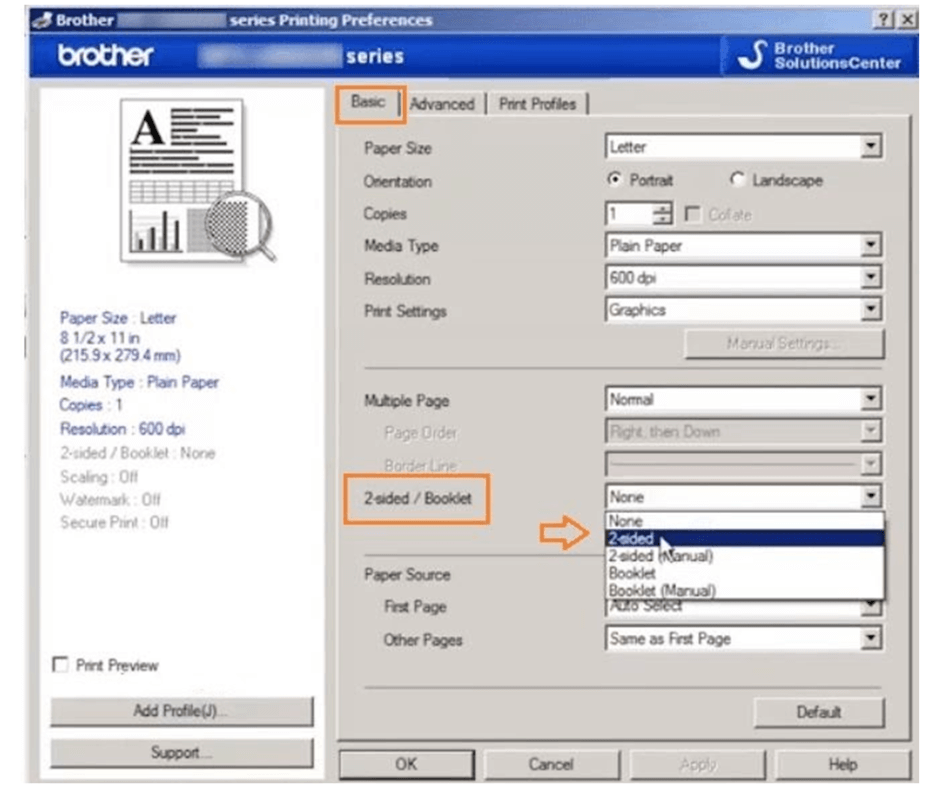
Step 3: After enabling double-sided printing, the system will display the 2-Sided Setting option . Here, you can select the appropriate page flipping style.
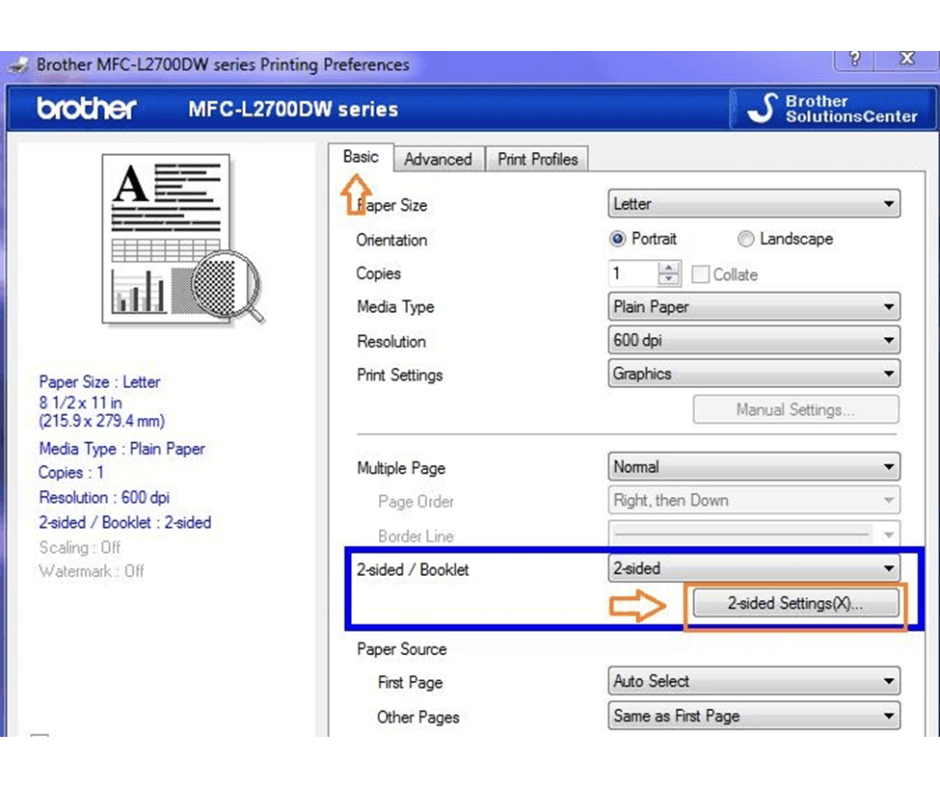
Step 4: Set the page edge according to the printing orientation. If printing vertically, select Long Edge . If printing horizontally, switch to Short Edge to prevent the page from being reversed.
After completing the steps above, you can proceed with printing. Double-sided prints on a Brother printer will display correctly, ensuring convenience when reading and using the document.
Tips for proofreading before printing in bulk, saving you paper and time.
Many avoidable errors result from printing entire stacks at once. By adding a simple check, you can prevent these risks.
Please print two test pages, meaning only pages 1 and 2. Then, flip through the pages in the way you would normally read. If it’s correct, then you can print the rest.
You can also use a small watermark on page 1, such as the word “Test”. When finished, remove the watermark. This makes it easier to distinguish the test version from the final version.
If the printer is shared in the office, you should record the correct configuration. You can take a screenshot of the flip-side section. Next time, you just need to select it again. This will reduce the likelihood of the double-sided printing error recurring.
In conclusion
If you frequently encounter printing errors such as double-sided printing, paper jams, or incorrect printer settings, Toshiba Thien Bang is ready to assist you from inspection and consultation to installation and operational optimization. Our technical team will directly review your machine configuration, drivers, and actual printing processes, helping you use your equipment more stably in your daily work. Contact Toshiba Thien Bang for advice on solutions tailored to your specific printer model and office environment.
